
INTRODUCTION
IMPLAN estimates an in-commuting rate for all regions - the outflows of Employee Compensation (net of payroll taxes) due to people who work in the region and go home to another region. This article will show you how to see what IMPLAN estimates as the in-commuting rate and how to adjust your analysis if you have more specific information for your project. And although there are quite a few calculations to adjust for your known in-commuting rate, we have a template to ease the process!
FINDING IN-COMMUTING RATES IN IMPLAN
By definition, Employee Compensation (EC) occurs at the site of employment (where operations occur). Thus, EC earned by in-commuters is still considered a Direct Effect to the Region and payroll taxes on that EC are collected in the Region. However, because it is earned by non-residents, this Commuter EC will not generate any Induced Effect in the Region. The portion of EC earned in the Region by these in-commuters, according to the in-commuting rate, is treated as a leakage in the IMPLAN model.
This is not the case for Proprietor Income (PI) in IMPLAN, as PI is always assumed to be local (no commuting rate applied). However, if you know that a portion of your Proprietor Income does in fact leak outside of the study Region, you can modify the PI value in your analysis using the same methods outlined in the article, with the one modification of using the data from the PI column in the SAM, rather than the EC column.
In commuting rates for a Region are reported in the Region Details in the Region Study Area Data There are a few steps to figure out the in-commuting rate in IMPLAN. To start, click into Region Details> Study Area Data > Area Demographics.
From there, we can find the in-commuting data for the Region in "Resident Wage & Salary Income by Place of Residence" table.
We can see in this table that in 2024 Louisiana had an in-commuter rate of approximately 3%.
FINDING IN-COMMUTING RATES FROM THE SAM
To better understand how the in-commuter rate relates to Employee Compensation, we can use the Social Accounting Matrix (SAM) to manually calculate the in-commuter rate.
Navigate to:
Social Accounts
> IxC Social Accounting Matrix
> Aggregate IxC SAM
The SAM can be interpreted as columns making payments to rows. We will be focusing on the EC (5001) column.
When looking at the EC (5001) Column:
The payments from the EC column to Federal Government Non-Defense (11001) and State and Local Government Other Services (12001) are payroll taxes.
The payments from the EC column to the Domestic Trade (28001) and Foreign Trade (25001) rows are the post-payroll tax household income dollars paid to employees that work in the Region but do not live in the Region (i.e., in-commuters). This is referred to in IMPLAN as Commuter EC - the remaining portion of EC once payroll taxes are removed that flows out of the Region due to in-commuting.
To get an estimate of the in-commuting rate for your region, sum the EC column's payments to the Foreign Trade and Domestic Trade rows and divide that sum by the total EC less EC's payments to Federal Government Non-Defense and State and Local Government Other Services. Below is an example from Louisiana in 2019.
EC Payroll Tax = EC payment to Federal Govt Non-Defense + EC payment to State/Local Government Other Services
$18,170,296,420.47 + $349,845,894.88 = $18,520,142,315.35
Total Outflows of EC = EC payment to Foreign Trade + EC payment to Domestic Trade
$313,648,356.74 + $3,984,334,449.97 = $4,297,982,806.71
In-Commuting Rate = Total Outflow of EC / (Total EC - Payroll Tax)
$4,297,982,806.71 / ($153,375,554,809.56 - $18,520,142,315.35) = 3.19%
ADJUSTING FOR A KNOWN IN-COMMUTING RATE
Adjusting for your known in-commuting rate is necessary when IMPLAN’s in-commuting rate differs from yours, particularly when the difference is significant.
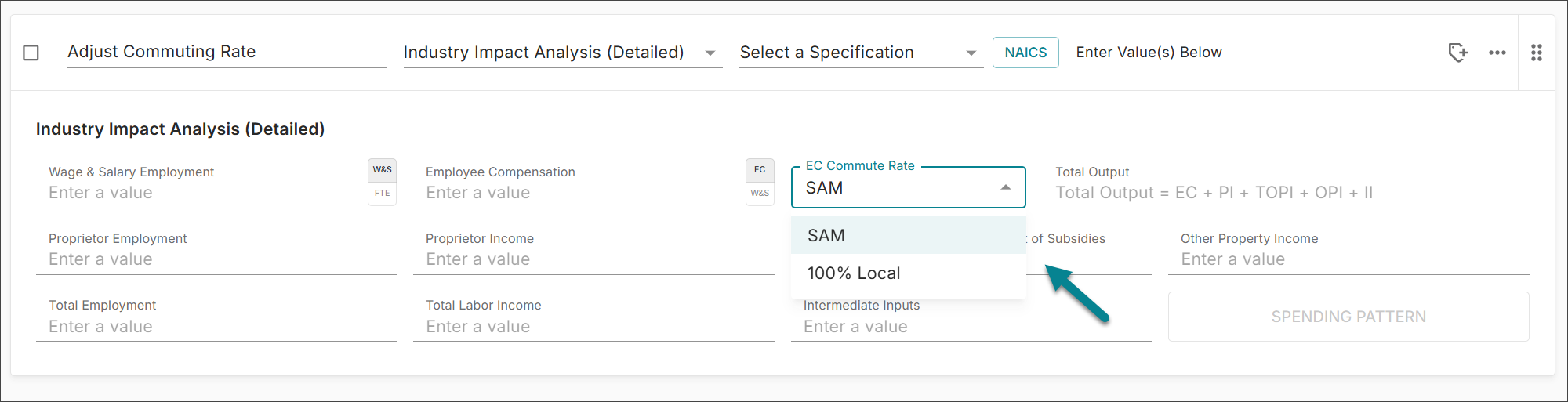
For example, if a new construction project was only hiring local workers from the Region, the analyst would want to adjust IMPLAN's SAM In-commuting rate to 0% so that none of the EC leaked out of the Region. If you want to adjust to 100% local workers, this can be done using the Industry Impact Analysis (Detailed) Event.
ADJUSTING TO A NON-ZERO IN-COMMUTER RATE
There is currently no way to manually adjust the EC Commute Rate to anything other than the SAM rate or the 100% Local. If you have a known rate that differs from the SAM but isn't 100%, you'll need to create an additional Labor Income Event to capture the change in Induced Effects from more or less EC staying in the Region.
This can be done using the 'Adjusting In-Commuting' table in the template to adjust IMPLAN's estimated regional commuting (SamCR) rate to your known regional commuting rate (MyCR). Using the construction example, if the project spent $5,000,000 on Employee Compensation in Louisiana we can assume that IMPLAN applied the 3.19% after-tax commuting rate. However, suppose we know that for this Event only 2% of the labor is in-commuting.
The first step is to fill in the In-Commuting portion of the template with the Employee Compensation data from the SAM:
We've filled in the LA 2024 example column. The adjacent teal column can be used to enter the information for your Region of interest.
The next step is to fill in the 'ADJUSTING IN-COMMUTING' portion of the table. The template will automatically calculate the input value for the necessary Labor Income Event using the following four variables:
MyEC = original, unmodified Employee Compensation
MyCR = your known commuting rate
SamCR = commuting rate reported in the SAM
NewEC = the adjusted EC value you want to use when running the analysis
Remember, your known commuting rate (MyCR) needs to be the value of the Employee Compensation that leaves the region after payroll taxes are removed!
So the formula is:
NewEC = MyEC* [ (1-MyCR) / (1-SamCR) ] - MyEC
For our LA construction example, we see
NewEC = $5,000,000 * [ (1-2%) / (1-3.19%) ] - $5,000,000 = $61,309.21
This number, $61,309.21 is what you will input for the Labor Income Event specified as Employee Compensation.
Now we can set up both Events in IMPLAN:
An Industry Impact Analysis (Detailed) Event in Industry 47 - Construction of new power and communications structures
Labor Income Event for the 5001 - Employee Compensation.
In this example, $5,000,000 was analyzed in an Industry Impact Analysis (Detailed) Event in Industry 47 - Construction of new power and communications structures. In our example, we know that we don’t want to estimate any additional Proprietor Income so we will zero that out. However, if we had any additional information such as Output or Employment, we can also utilize those.
Once you have run the two Events and navigated to the Results screen, filter for the Industry Event. This Event will produce the Direct, Indirect, and Induced Effects from the construction project. Enter those results in the first table, labeled Results from Event 1.
Repeat this process for the second Event, pasting the results into the the second table labeled Results from NEW LI Event. This Event will only produce Induced Effects.
The template will add automatically sum results from the two Events. The Adjusted Results are the values to report in your analysis, as they are adjusted to account for your known Commuting Rate.
NOTE
The same technique works for cases of the opposite direction as well - that is, when your known in-commuting rate is higher than IMPLAN's (i.e., you have more leakage of Commuter EC than IMPLAN shows). In such a case, the NEW Labor Income Event will have negative input values and Results.
Using the Construction example, let's say that we know 15% of the EC is earned by workers who live in another Region. Here the NEW Labor Income Event Value would be -$610,088.95. The negative Induced Effects would reduce the original Results, as this scenario has more EC leaked from the Region to generate effects elsewhere.
RESOURCES
How Commuter Employee Compensation is Estimated
Updated October 14, 2026